Text size
Applies everywhere in the app — scores, menus, messages, match history, the lot. Not just the screen you set it on.
33Pool Ladder
Get a free beta key, sign in with Kick, and play 33 Rotation from your own table.
33 Pool · The App
Pool rooms are dark, and the phone is usually propped on the rail a metre away. So the app is built high-contrast from the start — nothing to switch on — and the two things that matter most when you are squinting at it, text size and ball size, are yours to turn up.
On by default
There is no “high contrast mode” to find, because there is no low-contrast mode to leave. Every screen in the app is white on near-black, with a single bright green reserved for the things you can actually press.
Where it matters, colour is not the only signal. A win or a loss is written out in words beside the rating change, and tapping the balls your opponent has pocketed opens them at full size with each number spelled out — which is the real answer when two colours look the same over a compressed stream. Buttons, switches and the size steps below all carry labels for VoiceOver and TalkBack.
Four taps
Everything below lives in one place in the app. Here is the whole way there, screen by screen.
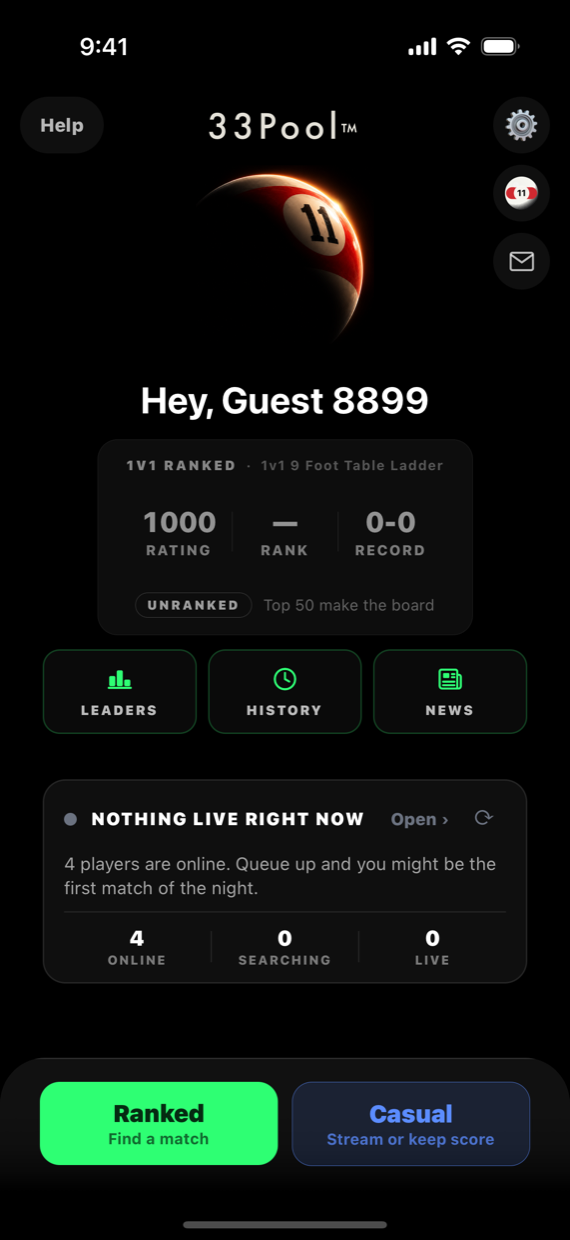
Open the app to the home screen. The gear sits in the top-right corner, above the ball icon and the envelope. That is Settings.
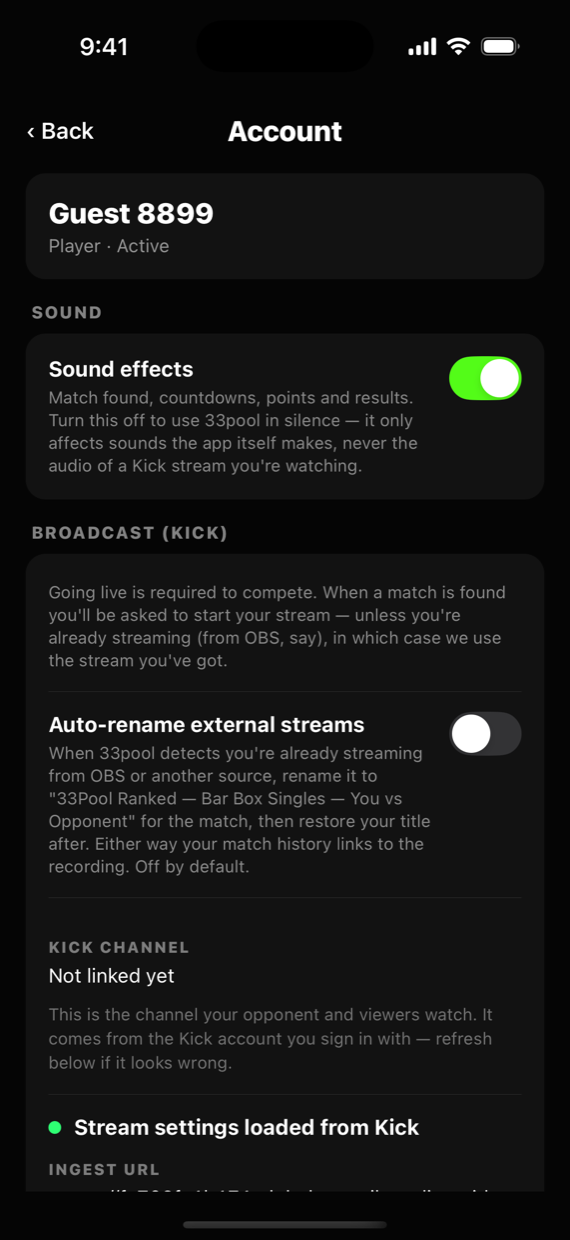
Sound, streaming and your Kick channel are at the top. You do not need any of them — keep going down.
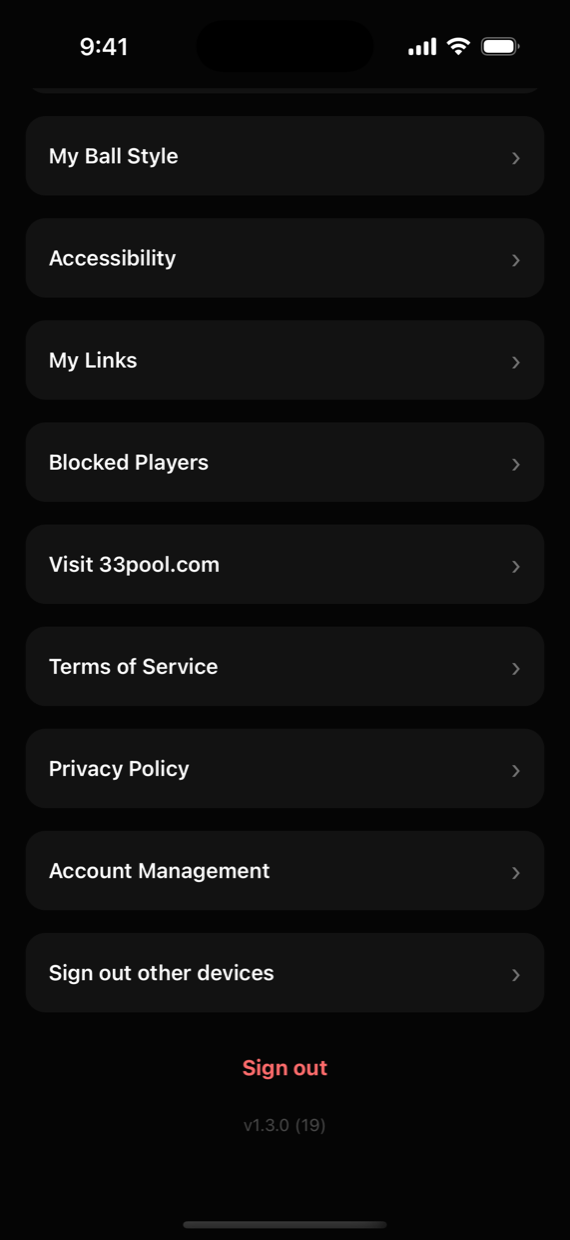
It is in the list of links near the bottom, directly under My Ball Style — the two sit together because both are about how the balls look to you.
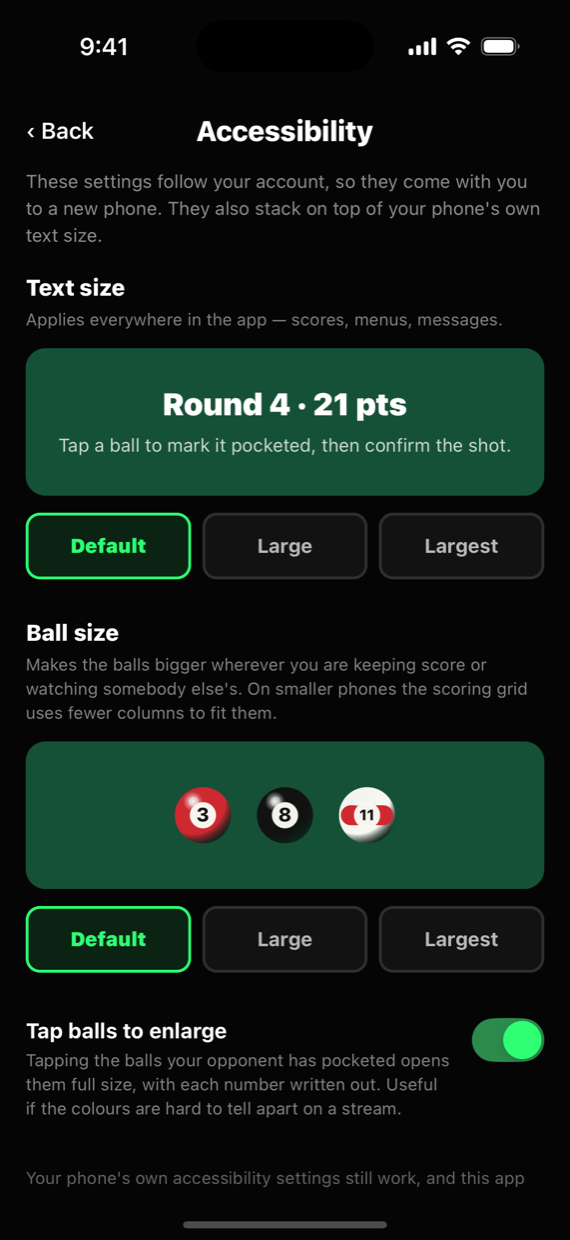
Two settings and a switch. Each one shows you the result on the screen as you change it — there is no Apply button to hunt for, and nothing to save.
What you can change
Both settings have the same three steps — Default, Large and Largest — and both show you a live preview above the buttons, drawn with the same components the match screens use. What you see in the preview is exactly what you will get when you are keeping score.
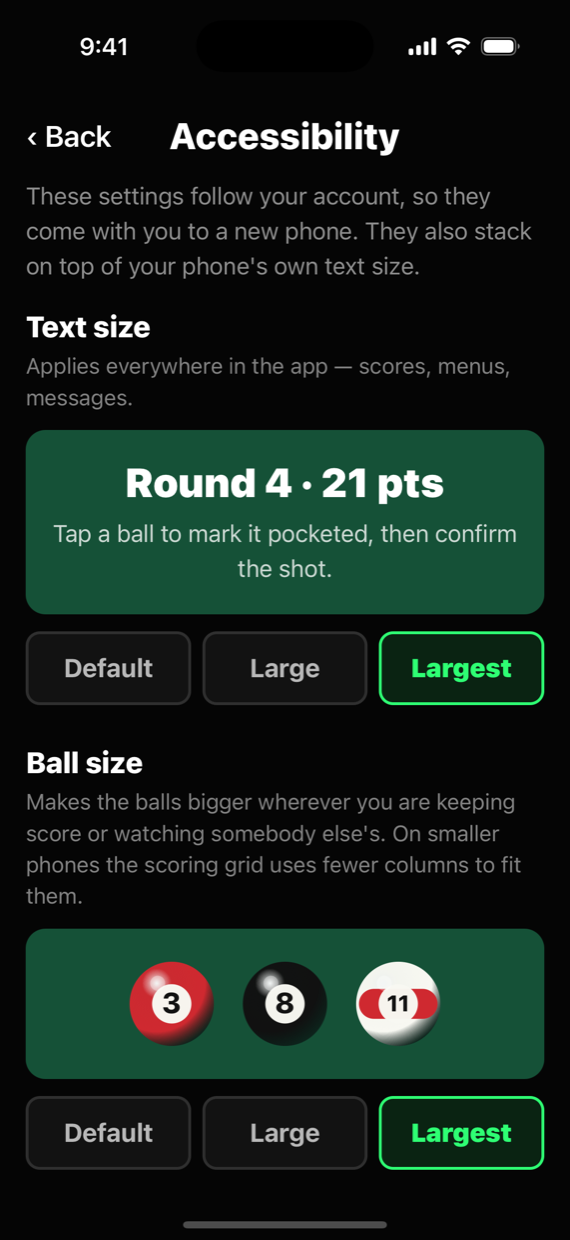
Applies everywhere in the app — scores, menus, messages, match history, the lot. Not just the screen you set it on.
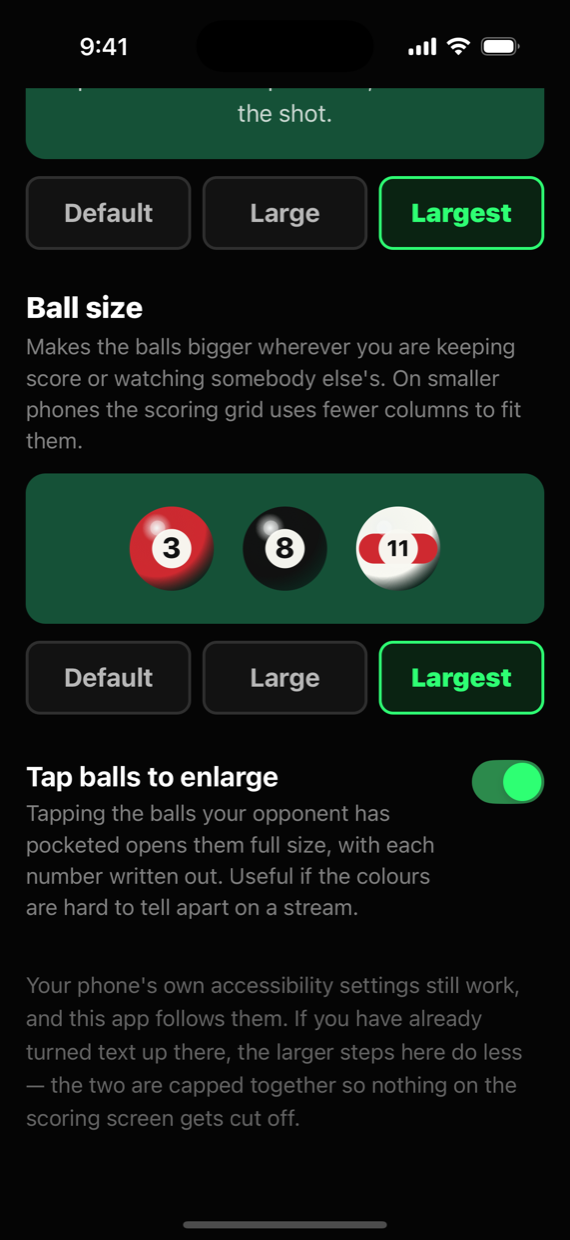
Makes the balls bigger wherever you are keeping score or watching somebody else keep score. On a smaller phone the scoring grid drops to fewer columns so the bigger balls still fit.
On by default. Tapping the balls your opponent has pocketed opens them full size with each number written out — useful when the colours are hard to tell apart on a stream.
Worth knowing
Not the phone. Sign in on a new device and your sizes come with you — you do not have to find this screen twice.
The app already honours the text size set in iOS or Android. These steps sit on top of it. If you have already turned text up on the phone, the larger steps here do less — the two are capped together so nothing on the scoring screen gets cut off.
Every tap takes effect under your thumb and syncs in the background. If the sync fails, the change still applies on that phone and the screen tells you so.
Something here not working for you, or something missing? Email aaron@33pool.com and say what you were trying to read.